




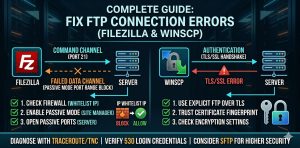
FTP connection errors occur when the client fails to establish a stable communication channel with the server due to firewall restrictions, incorrect credentials, TLS mismatches, or passive mode misconfigurations. These issues typically appear as errors like “Connection Timed Out,” “530 Login Incorrect,” or “Failed to Retrieve Directory Listing.” Engineers resolve these problems by verifying port accessibility, enabling passive mode, configuring firewall rules, and ensuring encryption compatibility between client and server.
In real-world hosting environments, especially in cloud infrastructure and managed server setups, FTP failures are not random. They are caused by specific misconfigurations at the network, protocol, or system level. Understanding how FTP works with separate command and data channels is the key to diagnosing and resolving these issues effectively.
Understanding Why FTP Connections Fail in Production
FTP operates differently from modern protocols because it uses two separate channels. The command channel works on port 21 and handles authentication and commands, while the data channel operates on dynamic ports to transfer files. Most failures occur when the command channel connects successfully but the data channel is blocked by firewall or NAT restrictions.
This is why many users experience situations where login works but directory listing fails. In enterprise environments, this is commonly caused by strict firewall policies or cloud security group configurations.
Root Causes of FTP Connection Errors
Connection failures in FTP are usually tied to one of the following technical issues:
- Firewall or security group blocking port 21 or passive port ranges.
- IP block listing triggered by repeated failed login attempts via CSF or LFD.
- Incorrect FTP credentials or missing shell access.
- Disk space exhaustion preventing session creation.
- TLS or SSL handshake mismatches between client and server.
- Passive mode misconfiguration in NAT or cloud environments.
Each of these causes requires a different troubleshooting approach, which is why engineers follow a systematic debugging process.
Step-by-Step: How Engineers Fix FTP Connection Errors
The most effective way to resolve FTP issues is to follow a structured troubleshooting flow used in production environments.
1. Verify Network Connectivity and Port Access
Start by checking whether the FTP port is reachable from your system. Engineers use commands like:
tnc <server-ip> -port 21(Windows)telnet <server-ip> 21mtr <server-ip>
If the connection fails at this stage, the issue is network-level, usually caused by firewall rules or blocked ports.
In complex setups, proper cloud infrastructure management plays a critical role in ensuring that FTP ports and passive ranges are correctly configured to allow traffic.
2. Check Firewall and Security Restrictions
Most FTP errors originate from server-side firewalls such as CSF or cloud security groups.
If your IP is blocked, you can allowlist it using:
csf -a <your-ip>
Cloud platforms like AWS and Azure require manual configuration of inbound rules to allow port 21 and passive ports.
3. Fix Passive Mode Configuration (Most Common Issue)
If your FTP connects but fails during directory listing, passive mode is usually the problem.
Switch your client (FileZilla or WinSCP) to Passive Mode and ensure:
- Server passive port range is defined (e.g., 30000–35000)
- Same ports are open in firewall
Without this, the data channel fails even if login succeeds.
4. Resolve Authentication Errors (530 Login Incorrect)
The 530 error is not always just a wrong password. It can be caused by:
- Missing shell in
/etc/shells - Incorrect user permissions
- Full disk space preventing session creation
Run:
df -h
If disk is full, FTP login will fail regardless of credentials.
5. Fix TLS/SSL Handshake Issues
Modern servers require secure FTP using Explicit TLS.
Errors like:
- GnuTLS error
- Certificate warnings
indicate encryption mismatch.
Solution:
- Update server OpenSSL
- Adjust client TLS settings
- Ensure certificate validity
6. Check File Permissions and Ownership
If login works but file upload fails, permissions are the issue.
Fix using:
chown -R user:user /home/user/public_html
Incorrect ownership leads to “Permission Denied” errors during file transfer.
7. Analyze Server Logs for Deep Debugging
When basic checks fail, logs provide the real answer.
Check:
/var/log/secure- FTP service logs (
journalctl -u pure-ftpd)
These logs reveal authentication failures, firewall blocks, or service-level errors.

Real-World Case: NAT Configuration Breaking FTP
In one production case, developers could connect from home but not from the office. The issue was caused by NAT misconfiguration, where the server returned a private IP instead of a public IP during passive mode.
Fix:
- Configure “ForcePassiveIP” or “Masquerade Address”
This resolved the issue instantly for all users.
FTP vs SFTP: What Engineers Prefer Today
FTP is still used but comes with limitations:
- Requires multiple ports
- Difficult firewall management
- Less secure
SFTP operates over a single port (22), is fully encrypted, and is easier to manage.
In modern environments, most server management services recommend switching to SFTP for better security and reliability.
Proactive Monitoring to Prevent FTP Failures
Instead of reacting to issues, engineers implement monitoring tools like:
- Nagios
- Zabbix
- AWS CloudWatch
These tools continuously check FTP availability and alert teams before failures impact production.
Many businesses rely on outsourced web hosting support services to monitor and maintain FTP services 24/7, ensuring zero downtime.
Best Practices to Avoid FTP Issues
- Always enable passive mode in modern networks.
- Open required ports in firewall and cloud security groups.
- Use TLS encryption to secure credentials.
- Allowlist trusted IP addresses to ensure secure and uninterrupted FTP access.
- Monitor FTP services proactively.
- Prefer SFTP over FTP when possible.
Following these practices ensures stable and secure file transfer operations.
Struggling with Traffic Spikes and Downtime?
Partner with our experts for reliable cloud auto-scaling, proactive monitoring, and high-availability infrastructure solutions.
Conclusion: Engineer-Level Approach to FTP Troubleshooting
Fixing FTP connection errors requires more than trial-and-error. It demands a clear understanding of network architecture, firewall behavior, and server configuration.
By following a structured troubleshooting approach checking connectivity, validating firewall rules, configuring passive mode, and analyzing logs you can resolve almost all FTP issues efficiently.
For businesses running critical applications, maintaining a properly configured FTP or SFTP environment is essential for smooth deployments and uninterrupted operations. This is where expert infrastructure support becomes a key differentiator in ensuring reliability and performance.



