




Infrastructure engineers fix WordPress plugin conflicts by performing deep root cause analysis at the server level rather than relying on trial-and-error dashboard clicks. This process involves isolating PHP execution errors, database deadlocks, and resource contention issues using command-line tools and system logs. Resolving a Fix WordPress Plugin Conflict scenario requires a systemic approach to identify the exact line of code causing the failure. This technical guide explains the transition from basic troubleshooting to advanced server-side remediation for high-traffic production environments.
The Technical Reality of WordPress Plugin Infrastructure Contention
A plugin conflict occurs when two or more code snippets attempt to occupy the same memory space or hook into the same function simultaneously. This contention often leads to the “White Screen of Death” (WSoD) or a sudden spike in CPU utilization. Engineers view these conflicts not as mere software glitches but as resource management failures within the Linux environment. When multiple plugins compete for the same PHP worker, the server eventually kills the process to prevent a total system crash. Understanding this hierarchy is the first step toward maintaining a stable high-performance WordPress site.
Why Plugin Conflicts Occur at the Root Level
The root cause of most conflicts stems from PHP version mismatches or “namespace collisions” where different developers use identical function names. In 2026, many conflicts also arise from plugins using different versions of the same library, such as Guzzle or various AWS SDKs. When the WordPress core loads these files, the server encounters a “Fatal Error: Cannot redeclare function” message. Infrastructure architects also point to inefficient SQL queries that lock database tables, preventing other plugins from executing their required tasks. These deep-seated architectural flaws require more than just a simple plugin deactivation to truly resolve.
How Infrastructure Engineers Diagnose Latent Conflicts
Systematic diagnosis begins with the activation of the WordPress debug mode via the wp-config.php file at the root directory. Engineers do not rely on the browser output alone; they monitor the debug.log file in real-time using the tail -f command. This allow them to see errors as they occur during specific user actions. By observing the stack trace, an engineer can pinpoint the exact file path and line number where the execution stopped. This granular visibility is essential for distinguishing between a minor styling issue and a critical server-level execution failure.
Utilizing Server Logs to Trace Fatal PHP Errors
The most reliable evidence for a plugin conflict lives in the server-level error logs rather than the WordPress dashboard. On a standard Linux server, engineers check /var/log/apache2/error.log or the Nginx equivalent to find segmentation faults. These logs reveal if a plugin exceeded the memory_limit or reached the max_execution_time set in the php.ini file. For example, a log entry showing “Out of memory” suggests that a specific plugin is leaking resources during a cron job. Analyzing these logs provides a factual roadmap for the remediation process.
Step-by-Step Isolation Using the WP-CLI Tool
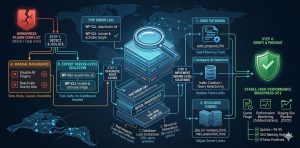
Engineers use the WP-CLI (WordPress Command Line Interface) to manage plugins without needing access to the admin dashboard. This is critical when a conflict has locked the administrator out of the site entirely. The process starts with the command wp plugin list to identify all active components and their current versions. Engineers then run wp plugin deactivate --all to strip the site down to its core functionality. One by one, they reactivate plugins using wp plugin activate [slug] while concurrently monitoring the site’s status code. This systematic isolation ensures that the offending code is identified without causing additional downtime.
Analyzing Database Deadlocks and Query Contention
Sometimes the conflict is not in the PHP code but in the MySQL database layer where plugins fight for table locks. Senior infrastructure engineers use the command SHOW FULL PROCESSLIST; in the MySQL console to identify “Waiting for table metadata lock” statuses. This typically happens when a backup plugin and a security scanner try to access the wp_options table simultaneously. Engineers resolve this by optimizing the database indexes or rescheduling the tasks to prevent overlapping execution. Proper database maintenance is a core component of Linux server management services.
Advanced Debugging with PHP-FPM Slow Logs
For conflicts that do not crash the site but cause significant slowness, engineers turn to PHP-FPM slow logs. These logs capture any script that takes longer than a specified time, such as five seconds, to execute. By reviewing the output, an engineer can see which specific plugin function is dragging down the server’s performance. The diagnostic process involves checking the /etc/php/8.x/fpm/pool.d/www.conf to ensure the request_slowlog_timeout is properly configured. This approach allows for “surgical” fixes rather than broad, disruptive changes to the infrastructure.
Real-World Production Scenario: High Traffic Conflict Mitigation
Consider a scenario where a popular e-commerce site experiences a checkout failure every time a specific marketing plugin updates. A Lead Technical Architect would first clone the environment into a staging area to avoid impacting live revenue. They would then use a tool like New Relic or Zabbix to monitor transaction traces during a simulated checkout. In one such case, engineers discovered that the marketing plugin was making an external API call that timed out. This timeout blocked the entire PHP thread, preventing the checkout from completing. The fix involved wrapping the API call in an asynchronous function.
Implementing Server-Level Workarounds for Code Conflicts
When a plugin is essential but conflicting, engineers may implement server-level workarounds such as PHP “auto_prepend_file.” This technique allows a custom script to run before any other PHP code, effectively patching the conflict in memory. Architects also use Nginx “map” directives to redirect specific problematic requests away from a heavy plugin. These solutions allow the business to continue operating while waiting for a permanent patch from the plugin developer. It demonstrates the value of having expert WHM server support for complex WordPress environments.
Managing PHP Memory and Resource Limits Correctly
A common “false” plugin conflict is simply a server that has been tuned too tightly for the active workload. Engineers ensure that the memory_limit in the php.ini file is sufficient for the combined requirements of all active plugins. They often set this to 512M or higher for resource-intensive sites like WooCommerce. Additionally, adjusting the max_input_vars setting prevents conflicts in the WordPress menu system or large settings pages. These configuration tweaks often resolve issues that appear to be code conflicts but are actually resource exhaustion.
Best Practices for Plugin Patch Management and Hardening
Infrastructure engineers emphasize that prevention is the most effective way to handle plugin conflicts. This involves a strict patch management policy where updates are first tested in a “sandbox” environment. Engineers also use version control systems like Git to track changes in the /wp-content/plugins/ directory. If a new update causes a conflict, they can revert to the previous version in seconds using a simple git checkout. This level of professional server monitoring and maintenance ensures 99.9% uptime even during complex updates.
Comparison of Manual Debugging vs. Automated Scanning Tools
While automated tools like “Health Check & Troubleshooting” are helpful for beginners, they lack the depth of manual analysis. Manual debugging allows an engineer to understand the why behind a failure, which is necessary for a permanent fix. Automated scanners often miss conflicts that only occur under specific traffic loads or database states. However, combining automated monitoring with human expertise provides the best results for mission-critical sites. Infrastructure engineers prefer using strace to follow system calls, providing a level of detail no plugin can match.
Real-World Case Study: The Conflict of Two Security Suites
A client recently experienced a complete site lockdown where even the server’s SSH connection was becoming sluggish. The investigation revealed that two different security plugins were both trying to rewrite the .htaccess file simultaneously. This created an infinite loop of file write operations that consumed all available Disk I/O. The engineering team intervened by manually clearing the .htaccess file and disabling the plugins via the database. They then implemented a single, more robust server hardening strategy at the firewall level using ModSecurity. This consolidated the security overhead and improved site speed by 40%.
Troubleshooting Performance Impacts Post-Conflict Resolution
Once a conflict is fixed, engineers must ensure that no “residual” issues remain in the system. They perform a “cache purge” at the server level, including Opcache and Object Cache (Redis/Memcached). This ensures that no corrupted bytecode or outdated data objects remain in the server’s memory. Monitoring tools like CloudWatch are then used to verify that CPU and RAM usage has returned to baseline levels. This final verification step is what separates professional server support from basic troubleshooting.
Using DevOps Infrastructure to Prevent Future Conflicts
Modern WordPress management increasingly relies on DevOps principles like Continuous Integration (CI). Engineers set up automated scripts that run “linting” tests on plugin code before it is allowed onto the production server. These tests can catch syntax errors or deprecated functions that would lead to a conflict. By treating WordPress infrastructure as code, teams can maintain a “clean” environment that is resistant to common plugin issues. This proactive stance is essential for any business utilizing AWS server management or Azure cloud support.
Struggling with Traffic Spikes and Downtime?
Partner with our experts for reliable cloud auto-scaling, proactive monitoring, and high-availability infrastructure solutions.
Summary of Key Takeaways for Server Administrators
Fixing a WordPress plugin conflict requires a shift from the application layer to the infrastructure layer. Use WP-CLI for safe isolation and rely on server error logs for factual data. Always maintain a staging environment for testing and keep your PHP and database configurations optimized. By focusing on root cause analysis, you ensure that your fixes are permanent and your server remains stable. Expert intervention at the server level is the most effective way to maintain high-performance WordPress sites in 2026.
Final Thoughts: Mastering Resilience Through Infrastructure-Level Debugging
Successfully resolving a Fix WordPress Plugin Conflict scenario requires moving beyond the application layer and into the infrastructure itself. For the senior engineer, a plugin failure is more than just a software glitch; it is an entry point for a systematic audit of the server’s health, resource allocation, and code integrity. By prioritizing root cause analysis over temporary dashboard fixes, you ensure that your production environment remains stable, performant, and scalable.
The transition from reactive troubleshooting to proactive infrastructure management is what defines high-availability WordPress hosting in 2026. Leveraging tools like WP-CLI, PHP-FPM slow logs, and MySQL process monitoring allows you to maintain 99.9% uptime even when third-party code fails. As you refine these server-level solutions, you cultivate a resilient ecosystem that protects both user experience and business revenue.
For those managing mission-critical deployments whether on AWS, Google Cloud, or a dedicated cPanel environment the methodology remains the same: isolate with precision, diagnose with data, and fix at the source. Start implementing these expert-level debugging routines today to transform how you manage and secure your WordPress infrastructure.



