




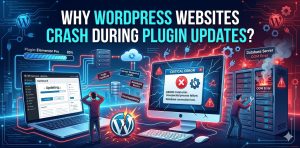
Summary:
WordPress websites often crash during plugin updates due to compatibility issues, PHP version mismatches, memory exhaustion, incomplete updates, and plugin or theme conflicts. When a plugin is updated, it may introduce changes that are not fully supported by the existing WordPress core, theme, or other installed plugins, leading to fatal errors or the white screen of death. Server limitations such as low PHP memory or incorrect file permissions can further increase the risk of downtime. Additionally, database conflicts or partially installed updates can break website functionality. To prevent these issues, website owners should use staging environments, maintain regular backups, keep all components updated, and carefully manage plugin installations to ensure stable and uninterrupted WordPress performance.
Introduction: Why Plugin Updates Can Break WordPress Websites
WordPress powers a large portion of modern websites due to its flexibility and plugin ecosystem. However, one of the most common and frustrating issues users face is a website crash during or after plugin updates. These failures often lead to downtime, broken layouts, or complete inaccessibility. The reason behind this is that WordPress plugins interact deeply with core files, themes, and server configurations. Even a small mismatch in compatibility can trigger errors that bring the entire site down.
Plugin Compatibility Issues: The Most Common Cause of Website Crashes
One of the primary reasons for a WordPress website crash after plugin update is compatibility failure. When a plugin is updated, it may introduce new functions or remove older ones that are still being used by other plugins or themes. If the WordPress core version or installed theme does not support these changes, it leads to conflicts. These conflicts often result in fatal errors, broken pages, or the infamous white screen of death, making the site temporarily inaccessible.
PHP Version Mismatch: Hidden Trigger Behind Plugin Failures
A major technical reason behind WordPress plugin update errors is PHP incompatibility. Many plugins are developed for specific PHP versions, and when hosting servers run outdated or too advanced PHP versions, the updated plugin may fail to execute properly. This mismatch creates runtime errors, deprecated function warnings, or complete site crashes. Ensuring that the hosting environment runs a supported PHP version is critical for stable plugin performance.
Memory Limit Exhaustion: Why Your WordPress Site Stops Loading
Another frequent cause of crashes is low PHP memory allocation. When a plugin update introduces heavier scripts or additional features, it may exceed the allocated server memory. This leads to WordPress fatal error: memory exhausted issues, causing the site to crash or load partially. High-traffic websites or those using multiple plugins simultaneously are especially vulnerable to this issue if server resources are not optimized.
Database Conflicts: Silent Errors That Break Website Functionality
Plugin updates often modify database tables or create new entries. If the update process is interrupted or if there are existing corrupted tables, the database structure can break. This results in missing content, login failures, or broken admin dashboards. These WordPress database errors after plugin updates are particularly dangerous because they are not always visible immediately but gradually impact site performance.
WANT TO PREVENT WORDPRESS WEBSITE CRASHES DURING UPDATES?
If your WordPress site is facing plugin errors, update failures, or unexpected downtime, proactive monitoring and expert-managed support can help you avoid critical disruptions and data loss.
👉 Ensure smooth plugin updates, stable performance, and zero-downtime operations with structured WordPress maintenance and technical support.
Incomplete or Failed Plugin Updates
Sometimes, plugin updates fail due to poor internet connectivity, server timeout, or file permission issues. When an update is partially installed, some files get replaced while others remain outdated. This inconsistency leads to critical errors and site crashes. In such cases, WordPress cannot properly execute plugin functions, resulting in broken functionality or complete downtime.
Plugin Conflicts: When Two Plugins Fight for Control
A common reason for WordPress site downtime after plugin updates is conflict between plugins. When two plugins try to modify the same WordPress function or hook, they can override each other’s code. This leads to unexpected behavior such as broken pages, missing elements, or admin panel failures. These conflicts are especially common with security, caching, and page builder plugins.
Theme Incompatibility After Plugin Updates
Themes play a major role in how plugins behave. After a plugin update, if the theme is not updated or is poorly coded, it may fail to support new plugin functions. This leads to layout breaks, missing sections, or complete front-end failures. Many WordPress crash issues after plugin updates originate from outdated themes that do not follow modern coding standards.
File Permission Issues and Server Restrictions
Hosting-level restrictions such as incorrect file permissions or strict security rules can also block plugin updates. When WordPress cannot properly overwrite or modify plugin files, it results in partial updates or corrupted installations. This creates a scenario where the website cannot load properly, leading to unexpected downtime.
How to Fix WordPress Crashes After Plugin Updates
To fix a crashed WordPress site, the first step is to access the site via FTP or file manager and disable the problematic plugin by renaming its folder. Next, switching to a default theme like Twenty Twenty-Four can help identify theme conflicts. Increasing PHP memory limits, checking error logs, and restoring from a recent backup are also effective solutions. These steps help restore site functionality and isolate the root cause of the issue.
How to Prevent Plugin Update Crashes in WordPress
Preventing crashes requires a structured maintenance approach. Always test plugin updates in a staging environment before applying them to the live site. Regular backups ensure quick recovery in case of failure. Keeping WordPress core, plugins, and themes updated ensures compatibility. Monitoring server resources and using only well-coded, trusted plugins significantly reduces the risk of crashes.
Best Practices for Stable WordPress Performance
Maintaining a stable WordPress environment requires proactive management. Limit the number of installed plugins to reduce conflict risks. Use caching and optimization tools carefully to avoid interference with plugin functionality. Regular security audits and performance monitoring help detect issues before they cause downtime. A well-maintained environment ensures smooth plugin updates without disruptions.
Conclusion: Ensuring Safe Plugin Updates for WordPress Stability
WordPress plugin updates are essential for security and performance, but they can sometimes lead to unexpected crashes due to compatibility issues, memory limits, or conflicts. Understanding these risks and applying preventive measures ensures long-term stability. With proper testing, backups, and server optimization, website owners can significantly reduce downtime and maintain a reliable online presence.
Frequently Asked Questions:
Why does my WordPress site crash after a plugin update?
Your site may crash due to plugin conflicts, PHP version mismatch, memory exhaustion, or incomplete updates that break functionality.
How do I fix a WordPress white screen after updating a plugin?
Disable the plugin via FTP or file manager, switch to a default theme, and check error logs to identify the issue.
Can outdated PHP cause WordPress plugin errors?
Yes, outdated or incompatible PHP versions often cause WordPress fatal errors after plugin updates.
How can I prevent plugin update issues in WordPress?
Use staging environments, maintain regular backups, keep everything updated, and only use trusted plugins.
Is it safe to update all plugins at once?
No, updating all plugins together increases the risk of conflicts. It is safer to update them one by one.
Related Posts
May 29, 2025
How to Fix WordPress Curl Error 52: Empty Reply from Server (2026 Guide)
In WordPress, the message "curl error 52: empty reply from server" typically reflects a critical…