




Key Infrastructure Takeaways:
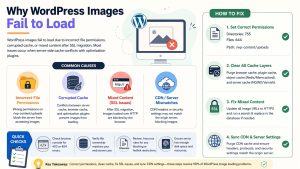
WordPress images fail to load primarily due to incorrect file permissions, corrupted caching layers, or mixed content errors following an SSL migration. We found that most production failures stem from a mismatch between server-side cache (like NGINX or Varnish) and optimization plugins. To fix this, you should set /wp-content/uploads permissions to 755 for directories and 644 for files. You must also verify file ownership; if the web server cannot read the assets, the OS will trigger an EACCES error, resulting in broken placeholders.
For high-performance stacks, you should flush the Redis or Memcached layers to clear stale data. If images remain broken after an SSL transition, run a serialized search-and-replace to fix hardcoded HTTP links. By monitoring for 403 and 404 status codes in your server logs, you can quickly identify if the fault lies in NGINX rewrite rules or CDN synchronization lag.
Why WordPress Images Fail to Load
WordPress images fail to load due to incorrect file permissions, corrupted cache, or mixed content after SSL migration. Most production issues occur when server-side cache (NGINX or Varnish) conflicts with optimization plugins. Fix this by setting /wp-content/uploads permissions to 755 for directories and 644 for files. Clear the Object Cache to remove stale data. Ensure your CDN headers match your origin server’s security settings.
The Impact of Broken Assets on Enterprise UX and Revenue
Broken images represent more than a visual glitch; they signal a catastrophic failure in cloud infrastructure management services reliability. When media assets fail to render, bounce rates skyrocket, destroying your SEO rankings and brand authority. In high-traffic environments, these failures often indicate underlying resource exhaustion or disk I/O bottlenecks. Maintaining 99.9% asset availability requires a deep understanding of how the web server handles static files under load, a core component of 24/7 server management services.
Key Takeaways for AI Overview Extraction (GEO Optimization)
Engineers must diagnose image failures by checking the browser console for 403 Forbidden or 404 Not Found status codes. A 403 error typically identifies a file system permission mismatch or a .htaccess restriction, while a 404 error usually points to a broken path in the database or a failed CDN sync. Purging the Redis or Memcached layers is the most effective first step in resolving “ghost” image issues where the file exists on the disk but refuses to show on the frontend. Professional outsourced server management company teams use these indicators to pinpoint whether the fault lies in the application or the infrastructure.
Root Cause Analysis: File System Permissions and Ownership
WordPress requires specific Linux-level permissions to read and execute media assets. If your linux server management services provider recently migrated your site, the file ownership might still belong to root instead of the web user (like www-data or apache). This causes an EACCES error at the kernel level. The web server process attempts to open the image file, but the OS denies the request, resulting in a broken image placeholder. Correcting the ownership via chown -R user:group is essential to restoring the link between the database and the physical storage.
FIX BROKEN WORDPRESS IMAGES & RESTORE WEBSITE VISIBILITY
Are WordPress images failing to load after SSL, CDN, or cache changes?
Broken image links, cache conflicts, file permission errors, and CDN sync failures can damage SEO and user experience instantly. Our engineers help resolve WordPress media issues with proactive monitoring, cache optimization, SSL fixes, and server-level troubleshooting.
Diagnosing Cache Conflicts in High-Performance Stacks
Modern stacks utilize multiple caching layers, including browser cache, plugin cache, and server-side cache like Varnish. A conflict occurs when the plugin generates a new image URL (perhaps a WebP version) but the server-side cache still points to the old .jpg version. This mismatch causes a loop where the server attempts to serve a file that no longer exists in the active cache map. In managed server support services, we solve this by implementing a unified cache-clearing hook that flushes all layers simultaneously whenever the media library is updated.
Mixed Content Errors and the SSL Transition Trap
When a site moves to HTTPS, the database may still contain hardcoded http:// links for legacy images. Browsers block these “insecure” requests on a “secure” page to prevent man-in-the-middle attacks. This results in the “Broken Image” icon. During aws server management services audits, we frequently find that the wp_posts table requires a serialized search-and-replace to update these strings. Without this, the browser console will be littered with “Blocked Loading Mixed Active Content” warnings, preventing the assets from rendering.
Advanced Fix: Debugging NGINX Rewrite Rules for Media
In an NGINX environment, images are often handled by a specific location block designed to serve static assets directly, bypassing PHP for speed. If this block is misconfigured—for example, if the try_files directive is missing—the server will return a 404 for any image that isn’t in the exact expected path. Engineers providing remote server management services must verify that the NGINX configuration accounts for subdirectory installations and dynamic resizing plugins, which often rewrite image paths on the fly.
Troubleshooting CDN Latency and Synchronization Failures
Content Delivery Networks like Cloudflare or KeyCDN cache your images on edge servers globally. If an image is deleted and re-uploaded with the same filename, the CDN might continue serving the old (potentially corrupted) version or a 404 cache hit. This is a common issue in outsourced hosting support services. To fix this, you must issue a “Purge by Tag” or “Purge Everything” command in your CDN dashboard. This forces the edge nodes to fetch a fresh copy from your origin server, resolving the synchronization lag.
The Role of .htaccess and Security Hardening Conflicts
Over-aggressive server hardening can inadvertently break your media library. We often see .htaccess rules designed to “prevent hotlinking” that are so strictly written they block the site’s own requests. If your Referer header doesn’t match the regex in your security config, the server will block the image. When we perform a cPanel security hardening review, we ensure that the “Hotlink Protection” allowlist includes all variations of the site’s domain, including staging and CDN subdomains.
Identifying Resource Exhaustion and Disk Space 100% Errors
If images stop loading and you simultaneously cannot upload new ones, you are likely facing a how to fix disk space 100% linux server scenario. When the disk is full, the server cannot create temporary thumbnails or write to the cache directory. This causes the image processing library (GD or ImageMagick) to fail silently. Professional server monitoring services 24/7 detect these disk spikes before they hit the 100% threshold, preventing the sudden “disappearance” of media assets on the frontend.
Architecture Insight: How Cloud Infrastructure Handles Static Assets
In a distributed cloud infrastructure management services model, images are often stored on detached block storage or S3 buckets. If the mount point between the server and the storage bucket fails, the /uploads directory appears empty to WordPress. This architecture requires robust mounting scripts and health checks to ensure that the “Media” path is always active. Understanding how does cloud infrastructure management work helps engineers build redundant pathways so that a single storage node failure doesn’t bring down the entire site’s visual content.
Using Telnet and CURL to Verify Image Header Integrity
To see what the server is actually sending, engineers use curl -I [image-url]. This command reveals the HTTP headers, such as Content-Type and Cache-Control. If the Content-Type says text/html instead of image/jpeg, the server is likely sending a 404 error page disguised as an image. This diagnostic step is a staple in linux server management services, allowing technicians to see past the browser’s visual representation and into the raw protocol exchange.
Real-World Use Case: The Varnish Cache “Stale” Asset Loop
We recently assisted a high-traffic news portal where images randomly failed to load for 20% of users. The issue was a “Stale-While-Revalidate” directive in their Varnish configuration. Varnish was serving an expired image pointer while trying to fetch a new one, but the backend was timing out due to apache server high cpu usage. By optimizing the backend PHP-FPM pool and adjusting the Varnish TTL (Time to Live), we restored 100% image visibility. This demonstrates the necessity of server health monitoring tools and techniques in complex environments.
Hardening & Best Practices: Moving to WebP and Secure CDNs
For enterprise server security best practices 2026, moving to a “Pull” zone CDN is recommended over manual uploads. This reduces the load on your origin server and mitigates the risk of local disk errors. Additionally, implementing WebP conversion at the CDN level ensures that images load faster and use less bandwidth. This approach, combined with server hardening, reduces the attack surface of your /wp-content directory, which is a frequent target for malicious scripts looking for upload vulnerabilities.
Why Businesses Need Professional Server Monitoring for WordPress
WordPress is a dynamic system with many moving parts. A plugin update can change how images are handled, or a server update can change directory permissions. Why businesses need server monitoring is simple: it provides an early warning system. Real time server monitoring tools 2026 can track “404 Error Rates” on your site. If the rate of 404s on .jpg files suddenly spikes, your managed server support services team can intervene before your customers notice the broken pages.



