




Quick answer:
cPanel AutoSSL may skip domains or subdomains when they fail Domain Control Validation (DCV), resolve to an incorrect IP address, have incomplete DNS propagation, encounter HTTP validation errors, or contain restrictive CAA records. AutoSSL only issues certificates for domains that satisfy the selected certificate provider’s validation requirements. Administrators must identify the specific validation failure in the AutoSSL logs, correct the underlying DNS or web server configuration, and rerun AutoSSL to complete certificate installation.
Why Does AutoSSL Skip Some Domains or Subdomains?
AutoSSL is a certificate automation feature in cPanel and WHM that automatically requests, validates, installs, and renews SSL certificates for eligible domains. However, adding a domain or subdomain to a cPanel account does not guarantee that AutoSSL will issue a certificate for it. Each hostname must satisfy the validation requirements of the configured certificate provider.
For example, a hosting account may have example.com, www.example.com, shop.example.com, mail.example.com, and staging.example.com. The primary domain might receive an SSL certificate successfully while shop.example.com or staging.example.com remains uncovered. This can happen when individual subdomains point to different IP addresses, do not resolve publicly, or cannot serve the required DCV validation file.
The important distinction is that AutoSSL does not simply check whether a hostname exists in cPanel. It must establish control over the hostname through an accepted validation method. Administrators should therefore investigate the specific hostname and its validation result instead of assuming that a successful primary-domain certificate means every associated subdomain is eligible.
What Are the Most Common Reasons AutoSSL Skips Domains?
AutoSSL failures usually originate from DNS configuration, DCV validation, web server routing, certificate authority restrictions, or account configuration. Identifying the correct failure category helps administrators avoid unnecessary certificate deletion, DNS changes, or server-wide configuration modifications.
- Incorrect DNS records: The hostname points to an outdated or incorrect server IP address.
- Incomplete DNS propagation: Public DNS resolvers return different or outdated records.
- HTTP DCV failure: The validation file cannot be accessed through the hostname.
- Restrictive CAA records: DNS policies do not authorize the configured certificate authority.
- Redirect or rewrite conflicts: Custom rules prevent the validation request from reaching its required destination.
- Firewall or proxy interference: Security controls, CDN configurations, or proxy rules interrupt validation.
- Missing domain configuration: cPanel userdata or document-root mappings are incomplete.
- Certificate provider restrictions: Provider rate limits or certificate issuance requirements prevent a new request.
These issues can affect one hostname or several hostnames within the same cPanel account. The AutoSSL log identifies which validation method failed and provides the evidence needed to select the correct troubleshooting path.
What Is Domain Control Validation (DCV), and Why Does It Matter?
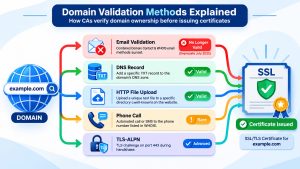
Domain Control Validation is the process through which a certificate authority verifies that the requester controls the domain receiving an SSL certificate. AutoSSL performs these checks before requesting certificate issuance. Depending on the provider and configuration, validation may use HTTP-based or DNS-based methods.
With HTTP-based DCV, the validation system attempts to retrieve a temporary verification file from a designated location under the domain. With DNS-based DCV, the system checks for a specific DNS record that proves control of the hostname. At least one supported validation method must succeed for the certificate request to proceed.
Why Can the Main Domain Pass DCV While a Subdomain Fails?
A parent domain and its subdomains can have different DNS records, web server configurations, and hosting destinations. Passing DCV for example.com does not always establish validation for shop.example.com or mail.example.com. The certificate provider’s support for ancestor-domain validation also affects whether successful parent-domain validation can cover a child hostname.
For example, example.com may resolve to the cPanel server, while shop.example.com points to an external ecommerce platform. AutoSSL may successfully validate the primary domain but skip the shop subdomain because the validation request reaches a different infrastructure. Administrators should verify each requested hostname individually and confirm that its DNS and validation configuration match the intended hosting environment.
How Can Incorrect DNS Records Cause AutoSSL to Skip a Domain?
DNS resolution is one of the first areas administrators should investigate when AutoSSL skips a domain or subdomain. If a hostname resolves to an incorrect IP address, an external server, or no public address at all, the HTTP validation request may never reach the intended cPanel account.
Consider a website migrated from an older hosting provider. The primary domain may already point to the new server, but an old A record for blog.example.com may still direct traffic to the previous server. AutoSSL can then fail validation for the blog subdomain even though the primary website works correctly.
What DNS Records Should You Verify?
Administrators should review the A, AAAA, CNAME, and relevant CAA records for each hostname. An A record should point to the intended IPv4 address, while an AAAA record should point to a reachable and correctly configured IPv6 destination. A CNAME should resolve through its target to the intended service. DNS configuration should also be checked for conflicting records and stale entries.
Useful commands for checking public DNS resolution include:
dig example.com A
dig example.com AAAA
dig shop.example.com A
dig shop.example.com AAAA
dig example.com CAA
dig +short shop.example.com
Compare the returned addresses with the server IP and the intended DNS configuration. If the domain uses an external DNS provider, check its authoritative records rather than relying only on the local server’s DNS zone.
Do not remove an AAAA record simply because IPv4 works. First establish whether the IPv6 destination is incorrect or inaccessible and correct the DNS or IPv6 service configuration accordingly. DNS changes may also require time to propagate according to the records’ TTL values.
How Do HTTP DCV Failures Prevent AutoSSL Certificate Installation?
HTTP-based DCV requires the validation system to retrieve a temporary file from a specific path on the requested hostname. If the web server cannot serve that file, AutoSSL may report an HTTP validation error even when the website itself loads normally.
For example, a Sectigo-based validation may use the following directory:
/home/CPANELUSER/public_html/.well-known/pki-validation/Let’s Encrypt-based validation commonly uses:
/home/CPANELUSER/public_html/.well-known/acme-challenge/The exact validation path depends on the selected provider and validation method. Administrators should not assume that both directories are used for every AutoSSL request.
What HTTP Errors Should You Investigate?
- 404 Not Found: The validation file is not accessible at the expected path, or routing rules send the request elsewhere.
- 403 Forbidden: File permissions, access restrictions, or security rules prevent access.
- 500 Internal Server Error: An application or server configuration error interrupts the validation request.
- Connection timeout: The validation service cannot reach the hostname within the required time.
- Redirect errors: Rewrite rules or redirect chains prevent successful retrieval of the validation file.
Administrators should inspect the relevant Apache or web server access and error logs, domain document root, file permissions, and rewrite rules. The goal is to make the required validation path accessible without weakening the security of the rest of the website.
Can CAA Records Prevent AutoSSL from Issuing Certificates?
Certificate Authority Authorization (CAA) records allow domain owners to specify which certificate authorities are permitted to issue SSL certificates for their domains. If the DNS configuration contains a restrictive CAA policy that does not authorize the AutoSSL provider, certificate issuance can fail even when the domain passes DCV.
For example, a domain may have a CAA record authorizing one certificate authority while the server’s AutoSSL configuration uses another. In this situation, the configured provider may be unable to issue the requested certificate.
How Do You Check CAA Configuration?
Use the following command to inspect the domain’s public CAA records:
dig example.com CAAReview the returned records and compare the authorized certificate authorities with the provider selected in WHM under Manage AutoSSL. Also check the relevant subdomain and its parent-domain CAA policy because DNS CAA processing can involve checking parent names when no applicable record exists at the requested hostname.
If the required provider is not authorized, update the CAA policy through the authoritative DNS provider. Do not remove all CAA restrictions without understanding the domain owner’s security requirements. The correct solution is to authorize the intended certificate authority while preserving the existing issuance policy.
How Can Redirects, Firewalls, and CDN Proxies Interfere with AutoSSL?
Custom web server rules, HTTPS enforcement, CDN proxy settings, and security filters can interfere with HTTP DCV. A website may load successfully for visitors while the certificate authority’s validation request receives a different response.
For example, an Apache rewrite rule may redirect every HTTP request to a custom application route. If the rule also intercepts the DCV validation directory, the validation file may return a 404 response instead of the expected content. Similarly, a firewall or web application firewall may block the validation request based on its source, request pattern, or security policy.
What Should You Check in Apache and .htaccess?
Review custom rewrite rules, forced HTTPS redirects, application routing, access restrictions, and virtual host configuration. Ensure the required AutoSSL validation paths are not intercepted or rewritten incorrectly. cPanel documents specific approaches for excluding DCV paths from custom Apache redirects.
Useful checks include:
curl -I http://example.com/.well-known/pki-validation/test.txt

curl -I http://example.com/.well-known/acme-challenge/test.txt

curl -I http://shop.example.com/
These commands help inspect HTTP responses and redirects. A 404 response for a test filename does not by itself establish a DCV failure, because the file is not an actual challenge file. Confirm the result against the real AutoSSL log and the actual validation request.
What If the Domain Uses Cloudflare or Another CDN?
A CDN or reverse proxy can change how HTTP requests reach the origin server. If the proxy applies redirects, access restrictions, caching, or custom security rules to the DCV path, certificate validation may fail. Administrators should verify that the hostname resolves correctly, that the origin can serve the validation request, and that proxy rules do not interfere with the required path.
Do not automatically disable a CDN proxy or firewall for the entire domain. Identify the specific blocking rule and apply a narrowly scoped exception only when the validation method and security requirements justify it.
Why Does AutoSSL Skip Service Subdomains Such as Mail, Webmail, and CPanel?
cPanel environments commonly include service-related hostnames such as mail.example.com, webmail.example.com, cpanel.example.com, webdisk.example.com, autodiscover.example.com, and cpcalendars.example.com. These hostnames may be generated or configured as part of the hosting account’s service setup.
However, the existence of a service subdomain in cPanel does not automatically guarantee successful certificate validation. Each hostname must meet the relevant DNS and validation requirements. If mail.example.com points to another mail service or webmail.example.com resolves incorrectly, AutoSSL may be unable to validate that hostname.
How Can Wildcard DNS and Service Subdomains Cause Validation Problems?
Wildcard DNS records and wildcard subdomain configurations can sometimes create unexpected hostname routing or document-root behavior. A wildcard subdomain may cause requests to reach a different virtual host or application path instead of the intended validation location.
Administrators should inspect the actual DNS records, cPanel domain configuration, virtual host mappings, and document roots for the affected service hostname. A service hostname that is not intended to point to the hosting server should not be treated as a normal website hostname requiring the same certificate coverage.
If a service hostname is intentionally hosted externally, verify whether the external provider manages its SSL certificate. If it is intended to use the cPanel server, correct its DNS and service configuration before rerunning AutoSSL.
How Do You Read AutoSSL Logs to Identify the Exact Failure?
The AutoSSL log is the primary troubleshooting resource for understanding why a specific domain or subdomain was skipped. It records validation attempts, provider responses, certificate requests, and errors encountered during the AutoSSL process.
Administrators can review the logs through WHM:
- Log in to WHM as the root user.
- Navigate to Home / SSL/TLS / Manage AutoSSL.
- Open the Logs tab.
- Select the relevant AutoSSL execution.
- Identify the affected hostname and review its DCV results.
The logs are also available from the command line:
ls -lah /var/cpanel/logs/autossl/
Each AutoSSL run can contain text and JSON log files. Review the most recent execution and correlate the timestamp with the reported SSL issue.
Which AutoSSL Error Messages Should You Recognize?
The following messages commonly indicate different validation problems:
- TOTAL_DCV_FAILURE: Every domain failed DCV. Neither the available HTTP nor DNS validation method succeeded.
- SECURED_DOMAIN_DCV_FAILURE: One or more currently secured hostnames failed DCV, potentially preventing normal certificate renewal.
- Local HTTP DCV error: The validation request could not retrieve the required file through HTTP.
- Local DNS DCV error: The expected DNS validation record could not be verified.
- No document root: cPanel cannot locate the configured document root for the domain.
These messages should be treated as diagnostic indicators rather than interchangeable errors. Administrators should follow the specific hostname, validation method, and provider response shown in the log before selecting a corrective action.
Why Can AutoSSL Delay Certificate Renewal When One Subdomain Fails?
An important AutoSSL behavior involves certificate coverage during renewal. If an existing certificate secures several hostnames and one or more of those hostnames fail DCV, cPanel may defer the normal renewal rather than immediately issue a replacement certificate with fewer covered domains.
This behavior helps prevent an existing certificate from losing hostname coverage unexpectedly. For example, an existing certificate may protect example.com, www.example.com, and shop.example.com. If shop.example.com stops passing DCV after a DNS migration, AutoSSL may report a secured-domain validation failure and delay normal renewal.
cPanel documentation explains that AutoSSL can attempt a reduced-coverage renewal closer to the existing certificate’s expiration if the failed DCV condition remains unresolved. The exact timing and behavior depend on the current AutoSSL implementation and provider.
Should You Remove the Existing Certificate to Force Renewal?
Deleting an existing certificate should not be the first troubleshooting step. Doing so can remove currently working SSL coverage and may create additional service disruption. Administrators should first investigate why the hostname failed validation and restore the required DNS or HTTP validation path.
If a domain is no longer intended to be secured by the account’s AutoSSL certificate, it may be appropriate to exclude that hostname from AutoSSL using the supported cPanel controls. Before changing coverage, confirm that the hostname is no longer required, identify any dependent services, and communicate the impact to the account owner.
How Do You Resolve Missing Document Root or cPanel Domain Configuration Errors?
AutoSSL relies on cPanel’s internal domain configuration to associate hostnames with their document roots and web server virtual hosts. If a domain is missing from the user data cache or its document-root mapping is incomplete, local HTTP DCV can fail even when the DNS records appear correct.
For example, an AutoSSL log may report that the system does not have a document root for a particular domain. This can indicate an inconsistency in cPanel’s domain configuration rather than a simple DNS problem.
What Should Administrators Verify?
Check whether the domain is registered under the expected cPanel account, whether its document root exists, and whether cPanel’s domain mapping contains the hostname.
For a confirmed missing domain mapping, cPanel provides repair procedures that may include rebuilding the user data cache and Apache configuration:
grep example.com /etc/userdatadomains

/scripts/updateuserdatacache

/scripts/rebuildhttpdconf
These commands are not a universal fix for all AutoSSL errors. Run the repair procedure only after confirming a domain mapping problem, and follow the applicable cPanel recovery procedure for the server’s configuration. Rebuilding Apache configuration and restarting services should be performed with appropriate operational precautions.
Once the domain mapping and virtual host configuration are correct, rerun AutoSSL for the affected cPanel account and verify the result in the latest log.
Can Certificate Authority Rate Limits Cause AutoSSL to Skip Domains?
Certificate authorities enforce issuance limits to protect their infrastructure and prevent excessive certificate requests. Repeated AutoSSL runs, frequent hostname changes, and repeated failed issuance attempts can contribute to rate-limit problems depending on the provider and the specific limit involved.
For example, Let’s Encrypt has issuance limits that apply to registered domains and certificate requests. A certificate containing multiple names can also consume relevant issuance capacity. Other providers maintain their own policies and request limits.
Administrators should review the provider’s response and identify whether the failure is related to a rate limit, pending request, or DCV issue. Repeatedly triggering AutoSSL without correcting the underlying problem is unlikely to improve the outcome and can create additional issuance delays.
The better approach is to correct DNS and validation issues first, avoid unnecessary certificate deletion or repeated manual requests, and retry after the applicable provider limit or pending request has cleared.
How Can Hosting Providers Prevent Recurring AutoSSL Failures?
Preventing AutoSSL failures requires ongoing DNS monitoring, certificate coverage reviews, and validation checks. Hosting providers should verify that newly added domains and subdomains point to the intended server before expecting automatic certificate issuance.
A practical monitoring process should include:
- Monitor SSL certificate expiry dates and renewal status.
- Review AutoSSL logs for repeated DCV failures.
- Check DNS A, AAAA, CNAME, and CAA records after domain migrations.
- Verify that HTTP validation paths remain accessible.
- Review custom redirects, CDN proxy rules, and firewall restrictions.
- Confirm that newly added subdomains have correct cPanel document-root mappings.
- Review certificate coverage before renewal windows.
- Track provider errors and rate-limit responses.
Monitoring should identify failed hostnames before an existing certificate expires. This gives administrators enough time to correct DNS or validation problems without creating unnecessary SSL outages for customers.
What Does a Real-World AutoSSL Troubleshooting Scenario Look Like?
Consider an illustrative shared hosting environment where a customer reports that AutoSSL successfully secured the primary domain but skipped two subdomains. The primary website loads over HTTPS, while shop.example.com and mail.example.com display certificate warnings.
The hosting administrator reviews the latest AutoSSL execution and finds that the primary domain passes HTTP DCV, while the shop subdomain resolves to an external ecommerce platform. The mail subdomain also has an outdated DNS record that points to a previous hosting provider.
The administrator confirms the intended hosting destinations with the customer before changing DNS records. The shop subdomain is intentionally hosted externally, so its SSL certificate remains the responsibility of the external platform. The mail hostname is intended to use the cPanel server, so its DNS record is corrected after authorization.
The administrator then reruns AutoSSL for the account and reviews the latest log. The mail hostname passes validation, while the externally hosted shop hostname remains outside the cPanel certificate coverage. This approach resolves the actual issue without changing the external website’s infrastructure or unnecessarily modifying unrelated DNS records.
When Should You Escalate an AutoSSL Issue to Server-Level Support?
Some AutoSSL failures require more than correcting a DNS record or checking the website’s .htaccess file. Persistent failures involving Apache virtual hosts, cPanel userdata, service subdomains, local DNS validation, firewall rules, or certificate provider communication may require server-level investigation.
Escalation is appropriate when multiple accounts experience validation failures, domain mappings are inconsistent, the web server cannot serve DCV files despite correct configuration, or AutoSSL repeatedly fails without a clear account-level cause.
A structured investigation should include the affected hostnames, latest AutoSSL logs, DNS responses, web server validation results, and any recent configuration changes. This evidence helps the support team identify whether the problem originates from the domain, hosting account, server configuration, or certificate provider.
How Does Managed Server Support Help Maintain Reliable SSL Automation?
Managed server support helps hosting providers maintain reliable SSL automation through certificate monitoring, AutoSSL log analysis, DNS troubleshooting, Apache configuration reviews, and cPanel service maintenance. A structured support process helps identify failed validation attempts before they affect customer-facing websites and email services.
Hosting companies managing multiple cPanel servers can also benefit from outsourced technical support services to extend troubleshooting coverage, handle recurring SSL issues, and maintain consistent server operations.
Frequently Asked Questions About cPanel AutoSSL
Why does AutoSSL secure my main domain but skip subdomains?
AutoSSL validates individual hostnames based on the configured provider’s requirements. A subdomain may point to another IP address, fail HTTP or DNS DCV, or have an incorrect web server configuration. Check the subdomain’s DNS records and its specific validation result in the AutoSSL log.
How do I force AutoSSL to run for a specific cPanel account?
In WHM, navigate to Manage AutoSSL, open the relevant account or user selection, and initiate the AutoSSL check. Administrators with root access can also use the cPanel command-line utility /usr/local/cpanel/bin/autossl_check --user=CPANELUSER. Review the latest execution log to confirm whether certificate issuance succeeded.
Does AutoSSL require the domain to point to the cPanel server?
For HTTP-based DCV, the hostname generally needs to resolve to a server that can serve the required validation file. DNS-based DCV has its own DNS hosting requirements. If a hostname points to an external platform, the cPanel server may not be able to validate or secure it through the expected method.
Can Cloudflare prevent AutoSSL from working?
Cloudflare or another reverse proxy can interfere with HTTP DCV if proxy rules, redirects, access restrictions, or security policies prevent the validation request from reaching the origin correctly. Administrators should inspect the affected hostname’s DNS and proxy configuration and verify that the required DCV path is accessible.
What does TOTAL_DCV_FAILURE mean in AutoSSL?
TOTAL_DCV_FAILURE indicates that all domains in the relevant certificate request failed Domain Control Validation. Neither the available HTTP-based nor DNS-based validation method succeeded. Administrators should review the AutoSSL log for each hostname and correct the underlying DNS or validation issue.
Why does AutoSSL report SECURED_DOMAIN_DCV_FAILURE?
This error indicates that one or more hostnames already covered by an existing certificate failed DCV. AutoSSL may defer normal renewal to avoid issuing a replacement certificate with reduced hostname coverage. Correct the validation issue or review whether the affected hostname should remain included.
Can a CAA record stop a free AutoSSL certificate?
Yes. If the domain’s CAA policy does not authorize the certificate authority selected in WHM, issuance can be prevented even when DCV succeeds. Check the public CAA records and authorize the intended certificate provider without weakening the domain’s existing security policy.
Where are cPanel AutoSSL logs stored?
AutoSSL execution logs are stored under /var/cpanel/logs/autossl/. Administrators can also review them in WHM under Home / SSL/TLS / Manage AutoSSL / Logs. These records contain useful details about provider responses, DCV results, and certificate installation failures.


