




Asterisk is a free and open source framework for building communications applications and is sponsored by Digium. Asterisk installation will help you make call’s easier.
Asterisk turns an ordinary computer into a communications server. Asterisk powers IP PBX systems, VoIP gateways, and conference servers and is used by small businesses, large businesses, call centers, carriers and governments worldwide.
It is one of the most famous Open source project that can be used in variety of interesting projects from simple voice voip server to complete home automation, private mobile service etc.
Asterisk is one of the best telephony solutions which is free to use. There are others such as “yate” that provide same type of solutions and even more custom ones. Due to the ease of implementation Asterisk has become more popular than anything else. Asterisk is very easy to use and lots of open source and closed source panels provide a GUI for it. So let’s start to install Asterisk.
Installation of asterisk server:
Asterisk installation requires a system running with kernel 2.6 and the header files must be present to compile asterisk on our system. Asterisk is written in c; we require gcc with the supporting libs such as termcap, and openssl. Asterisk add-ons require the mysql header files so please install mysql lib, mysql client and the headers to compile asterisk-add-ons.
Download all files:
- Zaptel
- Libpri
- Asterisk
- asterisk-sounds
- asterisk-addones
Installation of asterisk:
Goto /usr/local/src by executing the below command
“cd /usr/local/src”
Now download the above mentioned files using “wget”.
wget downloads.digium.com/pub/zaptel/zaptel-1.4.12.1.tar.gz
wget downloads.asterisk.org/pub/telephony/libpri/libpri-1.4.9.tar.gz
wget downloads.digium.com/pub/asterisk/releases/asterisk-1.4.20.tar.gz
wget downloads.digium.com/pub/asterisk/releases/asterisk-sounds-1.2.1.tar.gz
wget downloads.digium.com/pub/asterisk/releases/asterisk-addons-1.4.7.tar.gz
Now follow the below 31 steps for installing asterisk:
- tar -xzf zaptel-1.4.12.1.tar.gz
- tar -xzf libpri-1.4.9.tar.gz
- tar -xzf asterisk-1.4.20.tar.gz
- tar -xzf asterisk-sounds-1.2.1.tar.gz
- tar -xzf asterisk-addons-1.4.7.tar.gz
- cd zaptel-1.4.12.1
- ./configure
- make
- make install
- make config
- service zaptel start
- cd ..
- cd libpri-1.4.9
- make
- make install
- cd ..
- cd asterisk-1.4.20
- ./configure
- make
- make install
- make samples
- make config
- cd ..
- cd asterisk-sounds
- make install
- cd ..
- cd asterisk-addons-1.4.7
- ./configure
- make
- make install
- service asterisk start
Now we have installed a new asterisk server on our system.
Creating first sip extension:
Please add the following lines to sip.conf (/etc/asterisk/sip.conf)
Move the default sip.conf to sip.conf.bkp for future references.
In terminal type
mv /etc/asterisk/sip.conf /etc/asterisk/sip.conf.bak
Now to edit a new sip.conf type the following command:
/etc/asterisk/sip.conf
Add the following lines to the file:
[Actsupport]
type=support
host=web
secret=1q2w3e4r
context=users
[Amulya]
type=support
host=dynamic
secret=1qaz2wsx
context=users
We have entered two users Actsupport and Amulya, secret is the password for the above mentioned two users. Now save the file and exit.
Now we have two users and we need to assign two numbers for these two users. For this we’ve to edit dialplan configuration. Dialpan is the heart of asterisk, this is the most important file for configuration and asterisk works based on this configuration, Dialplan configurations are in /etc/asterisk/extensions.conf file. No extension can talk to each other unless we configure the dial plan.
Just like sip.conf, extensions.conf default have too much details that will be confusing for us at this point so lets move it as a backup. To do open your terminal and execute the below command.
# mv /etc/asterisk/extensions.conf /etc/asterisk/extensions.conf.bak
Create a new extensions.conf file by issuing the below command in terminal.
#vi /etc/asterisk/extensions.conf
Now enter the following for configuring extension for Actsupport and Amulya:
[users]
exten=>500,1,Dial(SIP/Actsupport,20)
exten=>501,1,Dial(SIP/Amulya,20)
Save it and exit.
We have assigned number 500 for Actsupport and 101 for Amulya.
Now we need to make our configurations active. After editing configuration files we need to reload it from asterisk console to make it active Type the below command to get connected to asterisk console in terminal.
#asterisk -r
Execute the following command to reload the sip conf:
sip reload
To reload dialplan issue following:
dialplan reload
Now the two users and two numbers are active, to see user status issue following command:
sip show peers
You will get the following message:
Name/username Host Dyn Forcerport ACL Port Status
Actsupport (Unspecified) D N 0 Unmonitored
Amulya (Unspecified) D N 0 Unmonitored
Thats it. Now connect voip phone and make call 🙂
Join us for the latest updates on Facebook, Twitter, LinkedIn
Subscribe to get free blog content to your Inbox
-
Previous Post
Active Directory Replication
Related Posts

May 7, 2026
How Do You Fix the “Bandwidth Limit Exceeded” Error and Prevent Website Shutdowns?
You fix the “509 Bandwidth Limit Exceeded” error by increasing the monthly data quota in…

May 7, 2026
What CTOs Look for Before Hiring a Managed Infrastructure Support Company
Managed server support services require a high degree of technical competence and cultural alignment to…

May 2, 2026
Why Your Linux Server Is a Target for Bots? How to Block the Bots
Summary: Protecting Linux Servers from Bots & Brute Force Attacks Automated bots constantly scan the…

May 2, 2026
In-House vs Outsourced Server Management: Fixing High Server Costs & Downtime
Summary Managing infrastructure in-house often leads to rising server costs and unexpected downtime. This happens…

April 20, 2026
Firefox 149 Built-In VPN: The Truth About Your Browser’s Hidden Privacy Leak
What You Need to Know: Firefox 149 Built-In VPN Direct Impact Analysis Firefox 149 features…

April 18, 2026
Your Server Is Sending Spam Without You Knowing: A Cybersecurity Risk in Web Hosting
Crunch Points: How to Stop Unauthorized Server Spam To stop unauthorized server spam, you must…

April 18, 2026
Your Logs Are Telling You Something: Why Ignoring Server Logs Leads to Major Outages (And How to Fix It)
What You Need to Know: How to Prevent Infrastructure Outages with Server Log Analysis Server…

April 18, 2026
Too Many Users Have Access to Your Server: Why Poor IAM Leads to Data Breaches
Key Takeaways: The Critical Link Between IAM and Data Breaches Poor Identity and Access Management…

April 17, 2026
Why “Strong Passwords” Are Obsolete: The 2026 Token-Stealing Attack That Bypasses MFA
Quick Breakdown: Your Browser Is the New Security Hole Strong passwords and traditional MFA have…
April 15, 2026
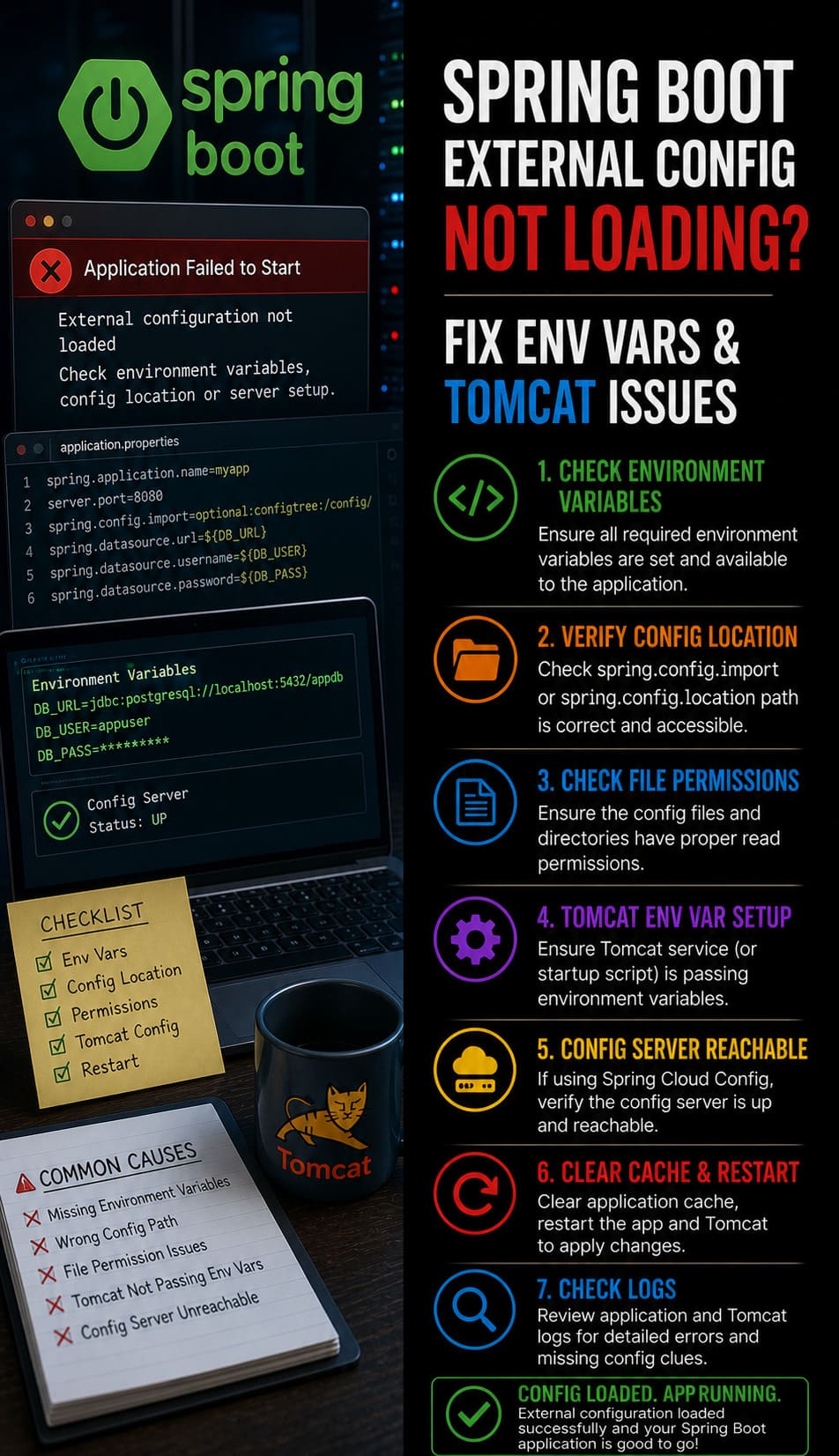
Spring Boot External Config Not Loading? Fix Env Vars & Tomcat Issues
Summary: Spring Boot external configurations fail to load when the application defaults to internal classpath…



