





To fix cPanel license expired error messages, you must verify your license status on the official cPanel store and then run the /usr/local/cpanel/cpkeyclt command as root via SSH to refresh the local license file. This error typically occurs when the server cannot communicate with cPanel’s licensing servers or after a billing cycle delay. Most infrastructure engineers resolve this by ensuring Port 2089 is open in the firewall and synchronizing the server system time with an NTP server to validate the license handshake.
Understanding the cPanel Licensing Architecture
The cPanel licensing system relies on a frequent handshake between your local server and the central cPanel license verification nodes. Every cPanel installation contains a local license file that stores the entitlement data and expiration timestamps. If the server fails to verify this data against the central authority, it triggers the “License Expired” block. This mechanism prevents unauthorized use while ensuring that server administrators receive the latest security patches and feature updates.
Why the cPanel License Expired Error Happens
Several root causes can trigger a license expiration warning even if you have paid for your subscription recently. Network connectivity issues represent the most common culprit, where local firewall rules or ISP routing prevents the server from reaching auth.cpanel.net. Additionally, if your server’s hardware clock drifts significantly from the actual time, the license validation will fail due to a security mismatch. Billing delays or issues with the upstream provider’s API sync can also cause temporary entitlement gaps.
How Engineers Diagnose the License Issue
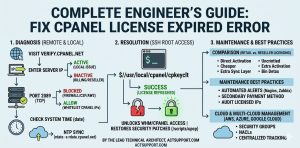
Infrastructure professionals start by checking the public status of the license using the official cPanel verification tool. They enter the server’s primary IP address into the portal to confirm if the license shows as “Active” in the central database. If the portal confirms an active status, the engineer knows the problem is local to the server environment. This diagnostic step saves time by narrowing the focus to network or local configuration issues rather than billing problems.
Analyzing Network Connectivity and Port Status
The cPanel licensing service communicates over TCP Port 2089, which must remain open for both inbound and outbound traffic. Engineers use the telnet or nmap utility to verify that the server can reach cPanel’s authentication servers. If the connection fails, the issue likely resides within the server’s local firewall, such as CSF (ConfigServer Security & Firewall) or firewalld. Opening this port is a critical step in cPanel server management and proactive infrastructure maintenance.
Fix License Validation Errors by Synchronizing System Time via SSH
A significant drift in the server’s system time will invalidate the license handshake immediately for security reasons. Engineers check the current system time using the date command and compare it to a reliable NTP (Network Time Protocol) source. If a discrepancy exists, they use rdate -s rdate.cpanel.net or timedatectl to force a synchronization. Keeping the system clock accurate is essential for server monitoring and maintenance and avoids various cryptographic failures.
Once the network and time are verified, the engineer logs into the server via SSH with root privileges to refresh the license. They execute the command /usr/local/cpanel/cpkeyclt, which is the primary utility for updating the local cPanel license file. The terminal should return a message stating “Update succeeded” if the communication with the auth server is successful. This command forces the server to discard the cached expired status and pull the latest entitlement data.
Resolving Firewall Blocks and IP Mismatches
If the cpkeyclt command fails, engineers investigate the local firewall logs for dropped packets on Port 2089. They might temporarily disable the firewall using csf -x to test if the license refreshes successfully without security restrictions. If the license updates while the firewall is disabled, ensure the cPanel authentication IP ranges are explicitly added to the allowlist. This ensures that cPanel server management remains uninterrupted even during strict server hardening procedures.
Handling License Errors in Cloud Environments
In AWS server management or Azure cloud support scenarios, external security groups often block non-standard ports like 2089. Engineers must navigate to the cloud provider’s console to verify that the Network Access Control Lists (NACLs) allow licensing traffic. Cloud-based instances also occasionally change public IP addresses during a reboot, which can cause a mismatch with the licensed IP. In such cases, the license must be transferred to the new IP address through the cPanel store interface.
Dealing with Upstream Provider API Sync Issues
When using outsourced hosting support or purchasing licenses through a reseller, delays can occur between payment and activation. Resellers use APIs to communicate with cPanel, and sometimes these syncs fail or lag during high-traffic periods. Engineers contact their white label support provider to verify that the license was correctly provisioned in the reseller billing system. This collaboration ensures that the backend entitlement matches the frontend server requirements.
Real-World Production Scenario: The Billing Delay
A high-traffic e-commerce site recently experienced a “cPanel license expired” error during a major sales event. The server administrator had updated the credit card on file, but the billing system had not yet re-attempted the transaction. The engineer resolved this by manually triggering a billing retry in the cPanel account portal. After the payment was confirmed, they ran cpkeyclt on the server, restoring the WHM access within minutes without affecting the live website.
KEEP YOUR CPANEL & WHM ENVIRONMENT ONLINE
Facing recurring cPanel license errors or WHM access issues on production servers?
License validation failures, blocked ports, billing sync issues, and firewall restrictions can instantly disrupt server administration workflows. Our engineers help manage, troubleshoot, and proactively monitor cPanel & WHM environments to ensure uninterrupted hosting operations and infrastructure stability.
License Errors: Performance Impact, Security Risks & Maintenance Best Practices
An expired license does not usually shut down the hosted websites, but it completely blocks access to the WHM and cPanel interfaces. This prevents administrators from creating new accounts, managing backups, or performing critical patch management. Furthermore, the server stops receiving vital security updates, increasing the risk of vulnerabilities. Rapidly resolving license issues is therefore a core component of maintaining DevOps infrastructure and data integrity.
Experienced engineers recommend setting up automated alerts for license expiration through tools like Nagios, Zabbix, or CloudWatch. These monitoring platforms can check the license status via the cPanel API and notify the NOC services team before a block occurs. Additionally, maintaining a secondary payment method in the billing portal prevents accidental expirations due to expired credit cards. Regular audits of licensed IPs also ensure that you are not paying for licenses on decommissioned instances.
Comparison: Retail vs. Reseller Licensing
Buying a license directly from cPanel offers the fastest support and activation but often comes at a higher retail price point. Reseller licenses provided by outsourced hosting support firms are usually cheaper but may involve an extra layer of communication during troubleshooting. Engineers choose the licensing model based on the complexity of their cloud monitoring needs and the level of 24/7 support required. Both models require the same local command-line steps to fix the “expired” error.
Advanced Troubleshooting: The local.license File
In rare cases, the local license file at /usr/local/cpanel/license may become corrupted or have incorrect file permissions. Engineers inspect this file to ensure that the cpanel user can read it and that the file is not set to “immutable.” They might move the existing license file to a backup location and run cpkeyclt to generate a fresh, clean version. This deep-level fix is often necessary after a server migration or a major filesystem error.
Managing Licenses across Multi-Cloud Infrastructure
Organizations running Google Cloud support alongside AWS must manage licensing keys across different virtual networks. Centralizing license management through a single cPanel account helps track expiration dates across the entire fleet. Engineers use automation scripts to run the /usr/local/cpanel/cpkeyclt command across multiple servers simultaneously during scheduled maintenance windows. This ensures that the entire DevOps infrastructure remains compliant and operational without manual per-server intervention.
Why Timezone Consistency Matters
While the absolute time must be accurate for licensing, engineers also ensure that the timezone configuration is consistent with the server’s geographical location. Misconfigured timezones can lead to confusing log entries, making it difficult to debug when exactly a license handshake failed. Using the timedatectl set-timezone command aligns the server with the administrator’s local time, simplifying the interpretation of WHM server support logs.
Leveraging NOC Services for License Management
Many businesses utilize 24/7 NOC services to handle routine license updates and troubleshooting. These teams monitor the server logs for any “License” related warnings in the /usr/local/cpanel/logs/error_log. By identifying a pending expiration early, they can escalate billing issues to the finance department before the interface is blocked. This proactive approach is a hallmark of high-quality cPanel server management and technical architecture.
Conclusion: Ensuring Continuous cPanel Operation
Resolving a cPanel license expired error is a straightforward process when approached with a systematic engineering mindset. By verifying the status online, ensuring network transparency, and executing the refresh command, you can restore full server functionality quickly. Maintaining accurate time and open ports prevents the vast majority of these errors from recurring. Ultimately, proactive monitoring and robust billing management are the best defenses against unexpected licensing interruptions in production environments.



