





Overview: Troubleshooting cPanel Migration Failures
This guide provides a comprehensive technical breakdown for engineers facing cPanel migration failures, specifically addressing why transfers stall or break between servers. We examine the primary bottlenecks including disk space exhaustion in the /home partition, SSH session timeouts, and MySQL/MariaDB version mismatches that frequently disrupt the WHM Transfer Tool. By following our step-by-step CLI recovery process, you can clear corrupted archives, optimize your sshd_config for long-duration transfers, and execute manual restorations to ensure zero data loss. Whether you are managing a single high-traffic B2B site or a bulk server move, these infrastructure-level best practices are designed to eliminate downtime and resolve “Archive Extraction” errors. For complex migrations that require 24/7 oversight, our senior engineers offer professional web hosting support to handle the heavy lifting for you.
Introduction: Why Your cPanel Migration is Failing?
cPanel migration failures typically occur due to insufficient disk space in the /home partition, SSH connection timeouts, or mismatched MySQL versions between the source and destination servers. To fix a stalled transfer, engineers must increase the ServerAliveInterval in the SSH configuration, clear partial migration archives, and ensure firewall ports 2087 and 22 are open. Most failures are avoidable by pre-checking inode limits and clearing the /home/cpmove-*.tar.gz files from failed previous attempts.
You start a cPanel-to-cPanel transfer via WHM, the progress bar climbs to 80%, and then it hangs. After twenty minutes of silence, you get a “Timeout” or “Archive extraction failed” error. For a hosting provider or a B2B agency, this isn’t just a technical glitch—it is a billable hours drain and a reputation killer. Clients expect their data to move invisibly. When a migration breaks, you are left with a “zombie” account that exists on the new server but lacks a database, or worse, has corrupted email files.
In this guide, we will break down exactly why these transfers break and how to fix them using the command line like a real systems administrator. If you are tired of babysitting migration bars, you can always offload the risk to our web hosting support team.
What is a cPanel Migration Failure?
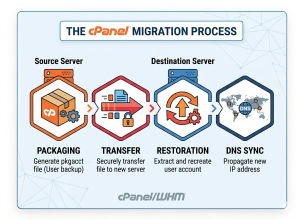
A cPanel migration failure is a breakdown in the communication or execution of the scripts/pkgacct (packaging) and scripts/restorepkg (restoration) routines. When you use the WHM Transfer Tool, the destination server logs into the source server via SSH, packages the entire account into a single compressed .tar.gz file, moves it across the network, and then unpacks it.
Technically, a failure means the stream was interrupted. This usually happens in the “Packaging” phase (source server side) or the “Extraction” phase (destination server side). When the process breaks, it often leaves behind “stale” processes and partial files that prevent you from simply clicking “Retry.” You have to manually intervene to clean the environment before the next attempt will succeed.
Why Transfers Break: The Real Causes Engineers See Daily
We’ve handled thousands of migrations at ActSupport, and the root causes almost always fall into these four categories. Understanding these helps you stop a failure before it starts.
The Disk Space “Double Trap”
This is the most common reason for cPanel migration failures. cPanel needs to create a full backup of the account in the /home directory before it can move it. If an account is 50GB, you need at least 55GB of free space in /home on the source server to build the archive. If the server hits 100% disk usage during packaging, the script crashes. We often see servers where the user is already at their quota, or the partition is nearly full, making a standard migration impossible without manual CLI intervention.
SSH and Firewall Timeouts
The Transfer Tool relies on a persistent SSH tunnel. If you are moving a 200GB account, that tunnel needs to stay open for hours. Many default Linux installations have a low ClientAliveInterval in /etc/ssh/sshd_config. When the server doesn’t see “activity” (because it’s busy compressing a huge mail folder), it drops the connection. Additionally, if the source server’s firewall (like CSF or Imunify360) detects a sustained high-bandwidth connection from an unknown IP (your new server), it might block the IP mid-transfer.
MySQL/MariaDB Engine Mismatches
You cannot easily move a database from a newer version of MariaDB to an older version of MySQL. If the source server uses MariaDB 10.6 and the destination uses MariaDB 10.3, the restoration will fail because of syntax differences in the SQL dump. We also see issues where the source server uses utf8mb4_unicode_520_ci collations that the destination server’s older database engine doesn’t recognize, resulting in “Table not found” or “Syntax error” during the restore phase.
Large File and Inode Congestion
Accounts with millions of small files usually located in the tmp folder, session directories, or old cur mail folders are a nightmare for the transfer tool. The rsync process or the tar command spends so much time indexing these files that it triggers a timeout. Similarly, extremely large files (like a forgotten 100GB log file or a previous backup) can cause the packaging script to time out or exceed the available temp space in /usr/local/apache/htdocs.
Step-by-Step Solution: How to Fix a Broken cPanel Transfer
When the WHM GUI fails, engineers move to the terminal. Follow these steps to recover and complete a failed migration.
Step 1: Clean Up the Mess
Before trying again, remove partial files. Otherwise, the next attempt may fail because the disk is even fuller.
rm -fv /home/cpmove-*.tar.gz
Also, check for stalled packaging processes:
ps aux | grep pkgacct
If a process has been running for hours with no progress, kill it using kill -9 [PID].
Step 2: Harden the SSH Connection
To prevent the “Broken Pipe” error, edit the SSH configuration on the destination server:
nano /etc/ssh/sshd_config
Add or update these lines:
TCPKeepAlive yes
ClientAliveInterval 60
ClientAliveCountMax 120
Restart SSH using systemctl restart sshd.
Step 3: Perform a Manual CLI Migration
If the WHM Transfer Tool keeps failing, run the migration manually for better control and clearer error output.
On the source server:
/scripts/pkgacct –user=USERNAME –skiphomedir
Note: Move large home directories separately using rsync.
On the destination server:
scp -P 22 root@source-ip:/home/cpmove-USERNAME.tar.gz /home/
Restore the account:
/scripts/restorepkg –force USERNAME
Step 4: Sync the Large Data via Rsync
After restoring structure and databases, move heavy files like public_html:
rsync -avzP -e “ssh -p 22” root@source-ip:/home/USERNAME/public_html/ /home/USERNAME/public_html/
This method is more resilient as rsync can resume interrupted transfers.
Real-World Case Insight: The “Zombie” Database
We recently handled a migration for a client moving from an old CentOS 7 server to a new AlmaLinux 8 box. The transfer reported “Success,” but the website showed a “Database Error.”
Upon investigation of the /usr/local/cpanel/logs/restorepkg/ logs, we found that the source server was using an ancient MySQL 5.6 version while the new server was on MariaDB 10.5. The database user password hashing was incompatible. We had to manually export the SQL, modify the header to match the new engine’s syntax, and recreate the database users with the new hashing format. This is why “one-click” migrations are rarely as simple as they seem for high-traffic B2B sites.
Prevention Best Practices
To avoid cPanel migration failures in the future, infrastructure engineers should follow this checklist before hitting “Transfer”:
-
Check Inode Counts: If an account has over 500,000 inodes, clean it up first. Delete old logs and session files.
-
Verify abase Compatibility: Always check
/usr/bin/mysql -Von both servers. -
Allowlist IP : Add the destination server’s IP to the source server’s
/etc/csf/csf.allowfile. -
Clear the Trash: Run
rm -rf /home/username/.trash/*to save space. -
Run a Test Account: Always migrate a small, 10MB test account first to verify that SSH and ports are talking to each other correctly.
Stop Worrying About Migration Failures
When you are handling high-stakes B2B infrastructure, “Retry” is not a valid strategy for moving critical client data. Server migrations should never feel like a gamble; they require a deep understanding of underlying filesystems, MySQL engine nuances, and complex network protocols.
At ActSupport, we eliminate the anxiety associated with server moves by providing engineer-level oversight for every transfer. Whether your project involves a single complex site or a bulk migration of a thousand accounts, our team ensures a seamless transition.
We prioritize verified data integrity and minimal downtime to protect your business reputation. Don’t let technical bottlenecks or “Archive Extraction” errors stall your growth. Partner with our Senior Infrastructure Engineers to handle the heavy lifting while you focus on scaling your services. Experience a guaranteed, error-free migration process backed by decades of technical expertise.
FAQ: Common cPanel Migration Errors: Troubleshooting and Fixes
Why does my cPanel migration stop at 99%?
This is usually not a hang, but the server performing the final restoration tasks, such as updating the DNS zone files and restarting the web server (Apache/Nginx). If it stays there for more than 15 minutes, check the restoration logs in /usr/local/cpanel/logs/cp_transfer_session/.
Can I migrate a cPanel account if the source server is down?
No, the Transfer Tool requires a live connection. However, if you have a full cPanel backup file, such as backup-date_time_username.tar.gz, stored elsewhere, you can upload it to the new server’s /home directory and use the Restore a Full Backup/cpmove File tool in WHM.
What ports must be open for cPanel migration?
You must open Port 22 (SSH) for data transfer and Port 2087 (WHM) for API communication. If you are using a non-standard SSH port, ensure you specify it in the Transfer Tool settings.
How do I fix the “Archive extraction failed” error?
This usually means the transfer was interrupted and the file is corrupted. Delete the partial .tar.gz file on the destination server, check your disk space, and re-run the transfer using the command line to see the specific error.
Will a migration change my IP address?
Yes, your website will have a new IP on the destination server. You must update your DNS A-records or Nameservers after the migration is complete. Our team can help manage the TTL (Time to Live) settings to make this switch nearly instantaneous.



