




Introduction
The EXT4 (Fourth Extended Filesystem) is the default Linux filesystem used by many modern Linux distributions because of its reliability, journaling capabilities, and excellent performance. Every file and directory stored on an EXT4 filesystem is represented by an inode, which contains essential metadata such as file permissions, ownership, timestamps, file size, and pointers to the actual data blocks.
Think of an inode as a file’s identity card. While the filename points users to the file, the inode tells the operating system where the file’s data is actually stored.
When Linux reports an “EXT4 Error: Inode Not Found For”, it indicates that the filesystem expected to locate an inode for a file or directory but could not find it. This usually signals filesystem corruption or underlying storage issues. If left unresolved, the error can result in inaccessible files, application failures, or even complete filesystem corruption.
This guide explains why this error occurs, how to troubleshoot and repair it safely, and the best practices to prevent it from happening again.
Understanding the “EXT4 Error: Inode Not Found For”
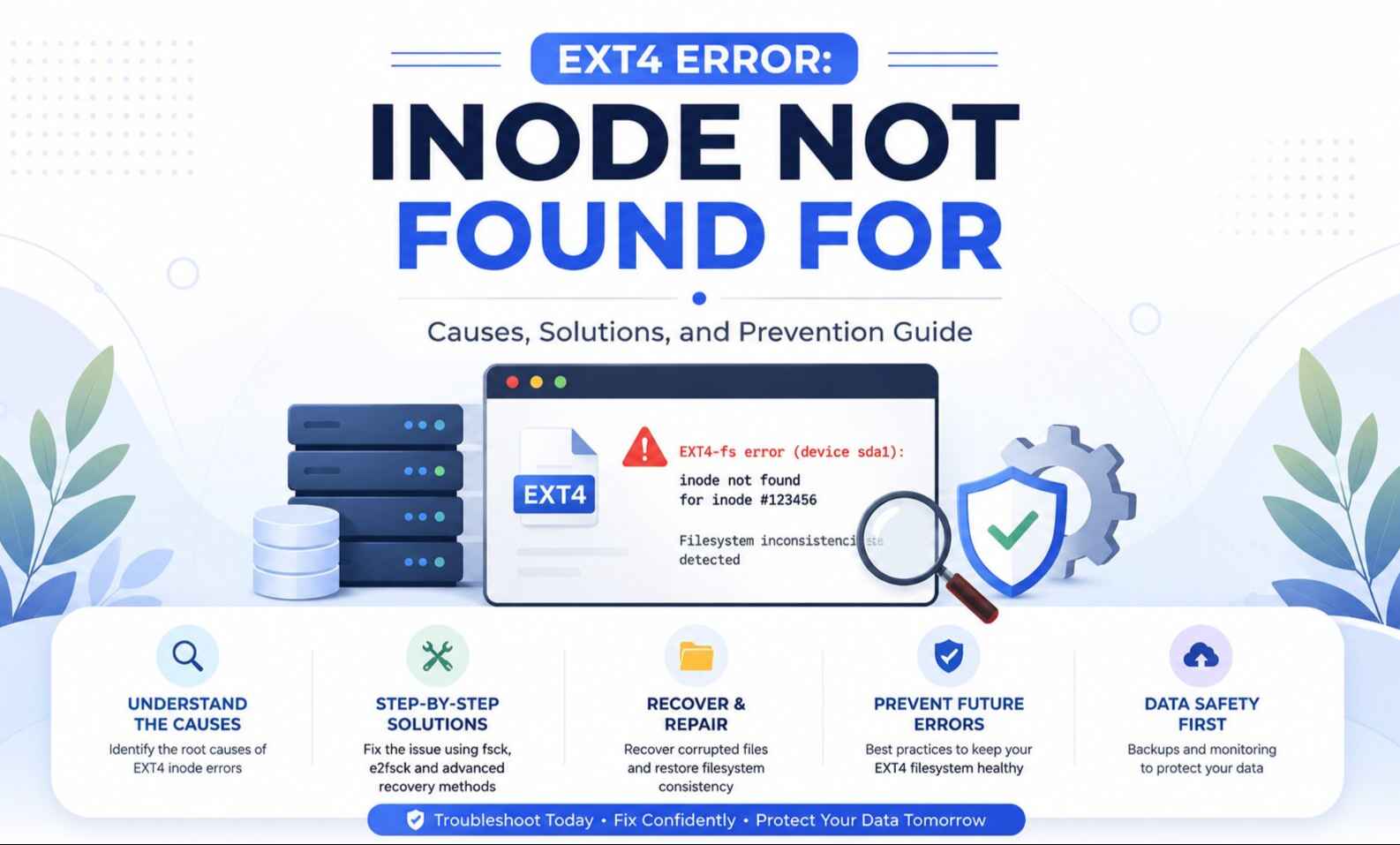
An inode is automatically created whenever a new file or directory is created. If the filesystem attempts to reference an inode that no longer exists or has become corrupted, the kernel logs an error similar to:
EXT4-fs error: inode not found for …
This means the filesystem metadata is inconsistent.
24/7 Emergency Support
Server Down Due to EXT4 Corruption?
Our Linux engineers are online right now. Average first response under 15 minutes — no tickets, no queues.
Common Causes
-
File System Corruption
Unexpected corruption is the most common reason. Metadata structures become damaged, causing inode references to disappear or become invalid.
-
Improper Shutdowns
Power failures, forced reboots, or kernel crashes during disk writes may interrupt metadata updates, leaving incomplete inode information.
-
Storage Hardware Problems
Bad sectors, failing SSDs, damaged HDDs, loose SATA cables, or RAID controller issues may corrupt inode tables.
-
Kernel or Driver Bugs
Although uncommon, filesystem bugs or outdated kernel versions may occasionally damage EXT4 metadata.
-
Memory Errors
Faulty RAM can write incorrect filesystem metadata into disk buffers, eventually causing inode inconsistencies.
Technical Impact
Since every file depends on its inode, a missing inode creates several problems:
- Files become inaccessible.
- Directories may appear empty.
- Applications fail to read required data.
- Backup jobs may terminate unexpectedly.
- The filesystem may automatically remount as read-only to prevent further damage.
Ignoring these warnings increases the risk of permanent data loss.
Troubleshooting and Solutions
Before attempting repairs, always create a disk image or backup if the storage device is failing.
Step 1: Check System Logs
Review kernel logs for filesystem errors.
dmesg | grep EXT4
or
journalctl -k | grep EXT4
Look for repeated inode or block errors.
Step 2: Identify the Affected Partition
Display mounted disks.
lsblk
or
df -h
Example:
/dev/sdb1
Step 3: Unmount the Filesystem
Never repair a mounted filesystem.
sudo umount /dev/sdb1
If repairing the root partition, boot into:
- Recovery Mode
- Rescue Environment
- Live Linux USB
Step 4: Run fsck
The primary repair tool is fsck (File System Consistency Check).
Run:
sudo fsck.ext4 -f /dev/sdb1
or
sudo e2fsck -f /dev/sdb1
Useful options:
sudo e2fsck -fy /dev/sdb1
Options explained:
- -f → Force a complete filesystem check.
- -y → Automatically answer “yes” to repair prompts.
If the filesystem contains serious damage:
sudo e2fsck -cc /dev/sdb1
This performs a bad block scan in addition to filesystem repair.
Step 5: Review the Results
Possible outcomes include:
Successfully Repaired
The inode tables are rebuilt, and filesystem consistency is restored.
Lost Files
Recovered files may appear inside:
lost+found/
Inspect recovered files manually.
Unrecoverable Corruption
If fsck cannot repair the filesystem:
- Restore from backups.
- Clone the disk before additional recovery attempts.
- Consider professional recovery services for critical data.
Advanced Recovery Options
When fsck cannot fully recover the filesystem, additional tools may help.
debugfs
Allows manual examination of EXT4 metadata.
sudo debugfs /dev/sdb1
Suitable for advanced administrators.
TestDisk
Excellent for recovering damaged partitions and lost filesystem structures.
PhotoRec
Useful when metadata is destroyed but raw file contents remain recoverable.
SMART Disk Diagnostics
Check hardware health.
sudo smartctl -a /dev/sdb
Look for:
- Reallocated sectors
- Pending sectors
- Read errors
If SMART reports disk failure, replace the drive immediately.
Prevention Strategies
Preventing inode corruption is significantly easier than repairing it.
Always Shut Down Properly
Avoid hard power-offs whenever possible.
Monitor Disk Health
Schedule regular SMART checks.
smartctl -H /dev/sda
Replace failing drives before corruption spreads.
Run Periodic Filesystem Checks
Modern Linux systems schedule periodic filesystem consistency checks.
Manual check:
sudo tune2fs -l /dev/sda1
Adjust check intervals if necessary.
Keep Linux Updated
Kernel updates frequently include EXT4 stability improvements and bug fixes.
Use a UPS
A UPS protects servers from sudden power loss that can interrupt metadata writes.
Maintain Reliable Backups
No filesystem repair tool guarantees complete recovery.
Adopt the 3-2-1 backup strategy:
- 3 copies of your data
- 2 different storage media
- 1 offsite backup
This remains the best defense against permanent data loss.
Conclusion
The “EXT4 Error: Inode Not Found For” message usually indicates filesystem metadata corruption, storage hardware issues, or improper shutdowns. Since every file depends on its inode, this error should never be ignored.
In most situations, running fsck on an unmounted filesystem successfully repairs inode inconsistencies. However, severe corruption may require advanced recovery tools or restoring data from backups.
Regular filesystem maintenance, hardware monitoring, proper shutdown procedures, and dependable backups significantly reduce the likelihood of encountering this error. Treat filesystem warnings as early indicators of potential storage problems, and address them promptly to protect your data.
Frequently Asked Questions
Free Consultation
Worried About Recurring Filesystem Errors?
Book a free 30-min call with our server team. We’ll audit your Linux environment and give you a prevention plan — no obligation.



