




Summary
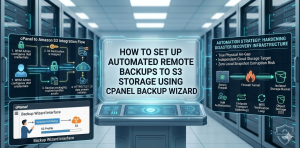
Setting up automated off-site data pipelines is critical for safeguarding hosting environments against hardware failures, localized server exploits, and local snapshot corruption. By configuring how to set up automated remote backups to s3 storage using cPanel Backup Wizard, administrators establish a secure physical air-gap between active application nodes and disaster recovery assets. This process involves creating a restricted AWS IAM credential framework, mapping the object storage target inside WebHost Manager (WHM) at the administrative layer, and using the user-level cPanel Backup Wizard to execute or schedule full account compressed tarball streams via secure multi-part HTTPS uploads. This architecture ensures high-availability fallback options, predictable retention compliance, and low overhead operations across live production servers.
The Strategic Importance of Off-Site S3 Backup Topologies
Modern system administrators understand that keeping backup archives on the same physical disk array as your production web application leaves your enterprise incredibly vulnerable to data loss. Local retention means a single hardware controller crash, storage pool corruption event, or localized system exploit can instantly wipe out both your live environment and your recovery checkpoints simultaneously. To protect business assets from these critical failure vectors, infrastructure teams route automated archival streams to independent cloud storage environments like Amazon Web Services (AWS) S3. Utilizing object storage creates a true physical air-gap between your core web traffic servers and your historical snapshots, ensuring that even under total production server compromise, your operational recovery data remains pristine, isolated, and completely secure.
NEED EXPERT BACKUP ARCHITECTURE SUPPORT
Struggling to configure reliable cPanel to S3 automated backups without failures or data loss risks?
If your AWS S3 backups are failing, timing out, or not restoring properly, the issue usually lies in IAM policy design, WHM backup configuration, or transport-level constraints. ACTSupport helps businesses design and stabilize end-to-end backup pipelines across cPanel, WHM, and cloud object storage like AWS S3 with secure, production-ready configurations.
Technical Foundations of the cPanel to AWS S3 Transport Stream
The process of moving a full user account archive from a hosting instance to an AWS S3 object bucket relies on several system layers. These layers work together behind the scenes.
When a user requests an archive via the front-end wizard, cPanel triggers its backend packaging routine. It bundles home directory paths, database dumps, and email configurations into a compressed tarball container.
Instead of storing this package on local disks, cPanel uses its cloud transport engine. It streams data using secure HTTPS endpoints. The system splits the archive into smaller chunks. It uses multi-part upload protocols. This helps bypass local timeout limits. It also prevents high CPU spikes and performance drops during uploads.
Step 1: Provisioning the Amazon S3 Storage Bucket and IAM Security Layer
Before configuration, you must create a dedicated S3 bucket in AWS. Log in to the AWS console and open the S3 service. Create a new bucket. Disable all public access to protect data.
Next, open IAM (Identity and Access Management). Create a restricted programmatic user. Avoid using full admin roles. Instead, apply a limited JSON policy.
This policy should allow only upload, list, and object verification actions. Save the Access Key ID and Secret Access Key securely. The server uses these credentials for authentication.
Step 2: Mapping the Remote S3 Target Inside WHM
A standard cPanel user cannot configure storage endpoints. This must be done in WHM. Log in using root access. Go to the Backup section in WHM. Open Backup Configuration. Scroll to Additional Destinations. Select Amazon S3. Click Create New Destination. Enter a destination name. Add your bucket name. Define the folder path for backups. Save the configuration.
Step 3: Validating Access Keys and Transport Security
Enter your AWS Access Key ID and Secret Access Key in WHM. Set the correct AWS region. This reduces latency issues during transfers.
Click Validate Destination. The server will test the connection. It checks credentials and bucket permissions. A success message confirms the setup is correct.
Set backup schedules during low-traffic hours. This improves performance and reduces server load.
Step 4: Activating Automated Backups via cPanel Backup Wizard
Once WHM setup is complete, users can use cPanel. Log into the control panel. Open the Backup Wizard under the Files section.
Select Backup. Choose Full Backup. This includes all account data.
From the destination list, select Amazon S3. Enter your email for notifications. Click Generate Backup. The process runs in the background.
Step 5: Monitoring Uploads and Verifying Logs
After starting the backup, cPanel launches a background worker. It handles compression and upload automatically. You can safely close the browser.
Admins can monitor logs using:tail -f /usr/local/cpanel/logs/cpbackup/*.log
These logs show compression progress and upload status. After completion, verify files in the AWS S3 console. Confirm file size matches server logs.
Lessons from the Field: Troubleshooting Upload Issues
During a migration project, backups failed every night. The system had over 120 GB of data. Uploads were timing out on AWS endpoints.
The issue was caused by large cache and log files. The server was overloaded during compression. We fixed it by excluding unnecessary directories. This reduced backup size by 35%. We also increased timeout limits. Multi-part upload settings were optimized.
These changes stabilized nightly backups. Transfers completed without failures.
Handling Credentials Failures and Policy Rejections
If validation fails, check IAM credentials first. Small mistakes in JSON policies often cause errors. Also verify the Access Key and Secret Key. A mismatch will block uploads. Ensure the IAM user has correct permissions. It must allow listing and uploading objects.
Check bucket encryption settings as well. Some configurations may block API requests. Fixing these settings restores normal backup operations.
Advanced Automation via Command-Line Engine
The Backup Wizard is useful for basic tasks. Enterprise setups require automation. Admins can use cron jobs for scheduling backups. These scripts can run without manual intervention. This approach allows custom retention rules. It also supports bandwidth control and multi-destination backups. Automating backups improves reliability. It ensures continuous data protection without manual effort.
Conclusion
Relying entirely on localized server storage strategies or reactive, manual web-panel snapshots creates severe vulnerabilities within enterprise production environments.
Secure infrastructure design requires decoupling system logic from data archives. It also involves shifting data preservation to specialized cloud object storage like Amazon S3. Taking control of backup architecture at the WHM administrative layer and user-level wizard reduces the risk of local drive corruption or partition failure.
Transitioning to this automated off-site approach removes the need for manual data movement. It provides a resilient, production-ready disaster recovery model. This approach helps systems withstand unexpected infrastructure failures effectively.



